
A Complete Guide to Linux File System Permissions
Practical Tips and Commands to Take Full Control of Your Linux Files

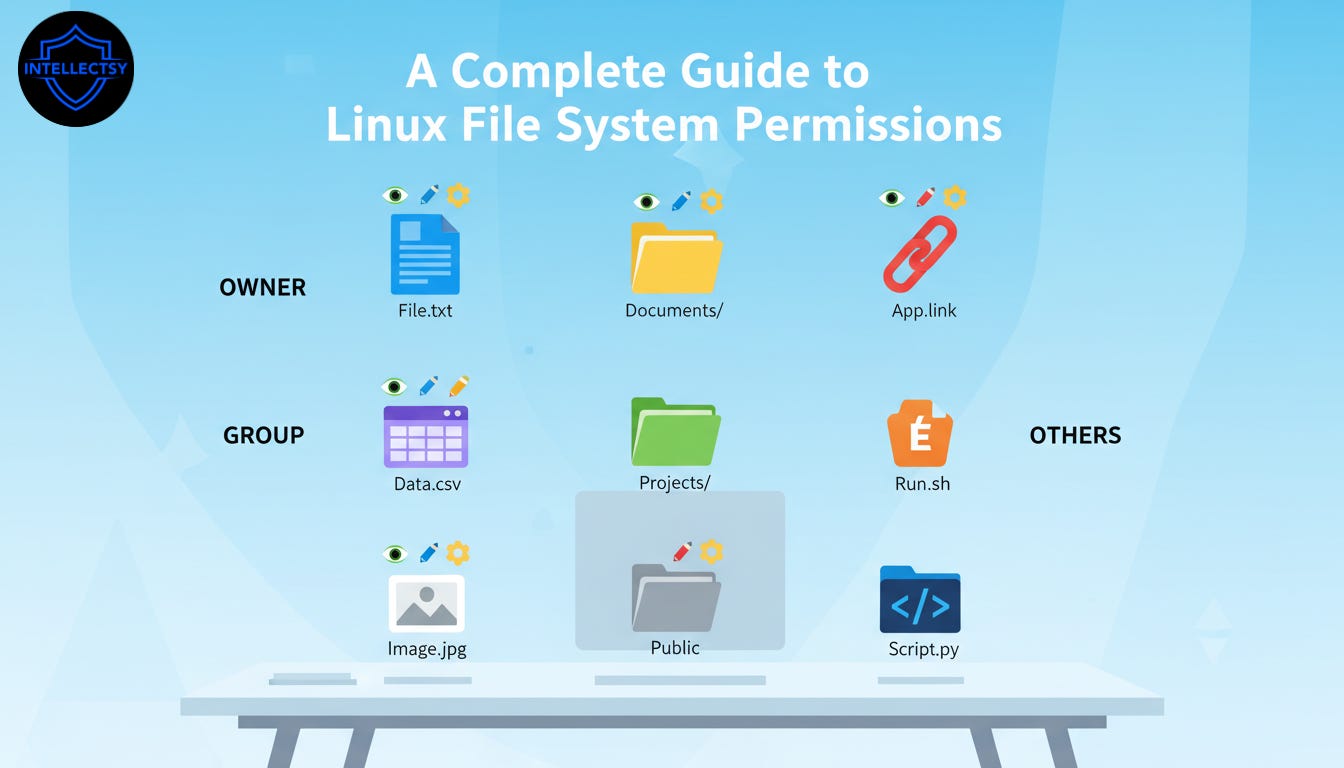
Linux file permissions are the gatekeepers of your system. They control who can read, write, or execute files, keeping your data safe and your system secure. While they may seem confusing at first, understanding them is easier than you think, and once you do, you’ll have full control over your files and directories.
In this guide, we’ll break down Linux file system permissions step by step, explain the symbols, numbers, and commands, and give you practical tips to manage them like a pro. Whether you’re a beginner or someone looking to refresh your knowledge, by the end of this blog, permissions won’t be a mystery anymore.
Understand Linux File Permissions:
Before using commands, it’s important to understand how Linux permissions actually work. Every file and directory in Linux has three types of permissions assigned to three categories of users.
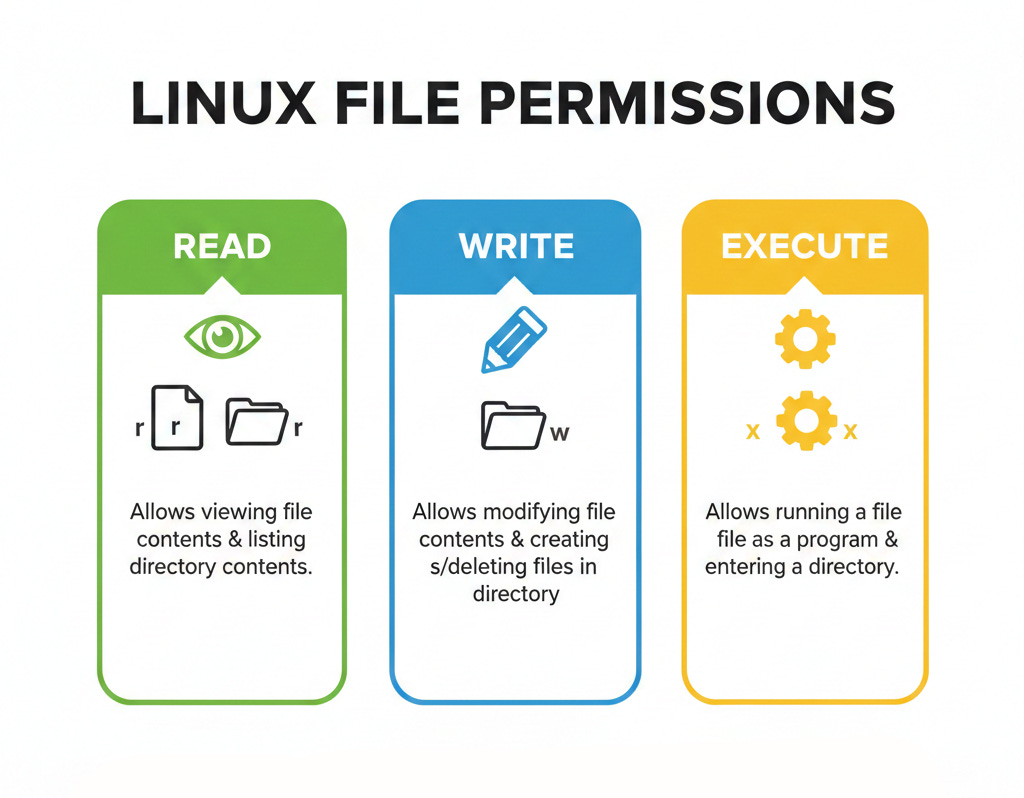
1. Permission Types:
Read (
r) – Allows a user to view the contents of a file or list the files in a directory.Write (
w) – Allows a user to modify, add, or delete a file, or change the contents of a directory.Execute (
x) – Allows a user to run a file as a program or access a directory to enter it.
2. User Categories
Owner (
u) – The user who created the file and has primary control over its permissions.Group (
g) – A set of users assigned to the file’s group, sharing specific access rights.Others (
o) – All other users on the system who are neither the owner nor in the group.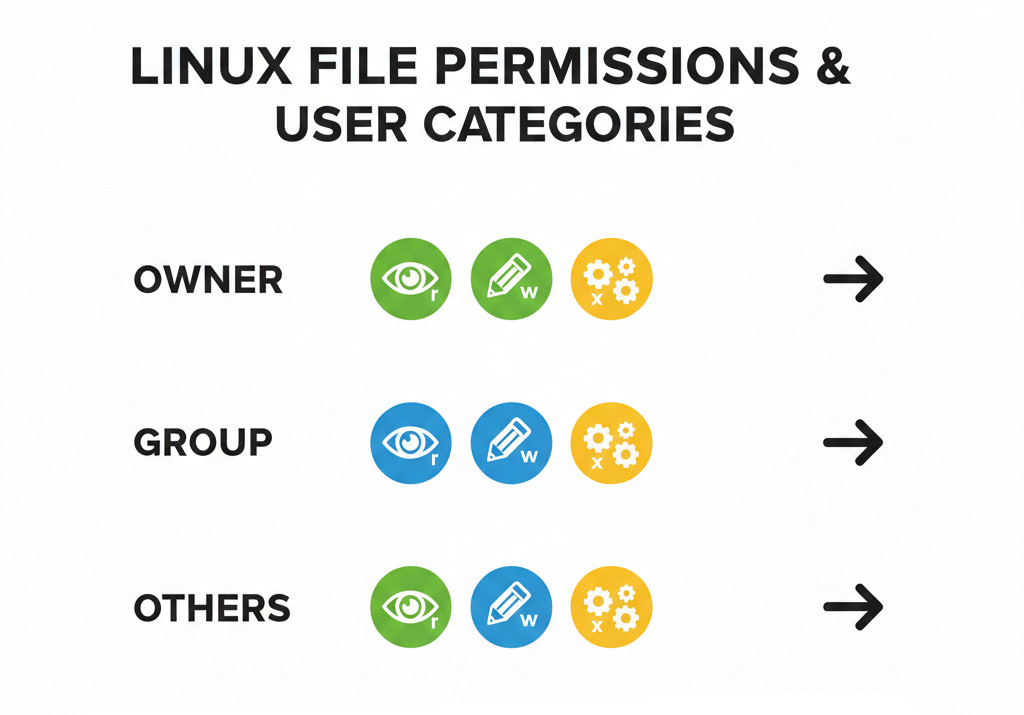
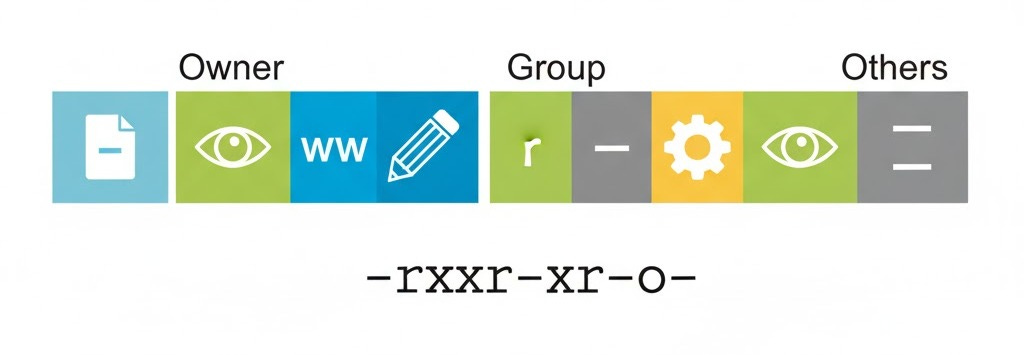
3. Permission Structure
File Type (first character) – Indicates whether it’s a regular file (
-), directory (d), or symbolic link (l).Owner Permissions (next three characters) – Shows what actions the file’s owner can perform (read, write, execute).
Group Permissions (next three characters) – Shows what actions users in the file’s group can perform.
Others Permissions (last three characters) – Shows what actions all other users can perform.
Stay ahead in cybersecurity.
Sign up to receive the latest tips, insights, and expert updates directly in your inbox.
Practical Linux Commands for File Permissions
Now that you understand why Linux file permissions matter, it’s time to get hands-on. Here’s a practical guide to the commands you’ll use every day to view, modify, and manage permissions.
1. Viewing File Permissions
Command: ls -l
At first, there were no files available. Therefore, I created two text files.
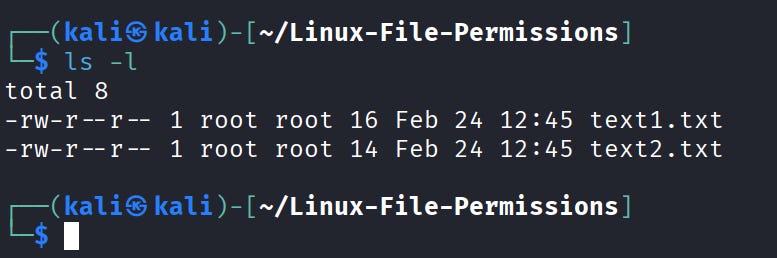
We can see the permissions of these files.
-rw-r--r--→ permissions oftext1.txt(owner can read/write, group can read, others can read)
2. Changing File Permissions with chmod
You can modify permissions in two ways: symbolic and numeric.
Symbolic method:
Command: chmod u+x text1.txt
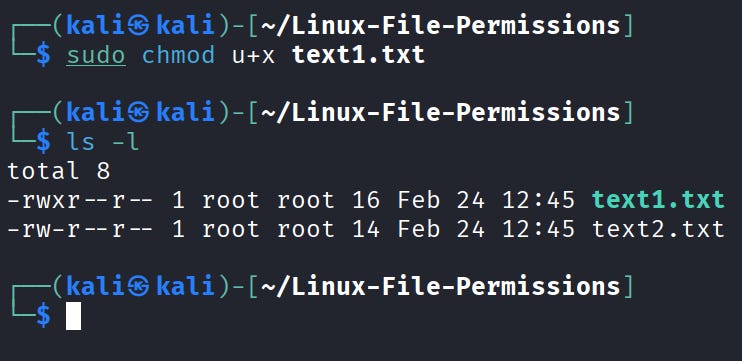
u+x→ adds execute permission for the owner (u).After running,
ls -l file1.txtwill show-rwxr--r--.
Try variations:
chmod g-w text1.txt→ remove write permission from group.chmod o+r text1.txt→ add read permission for others.
Numerical Method:
Command: chmod 754 text1.txt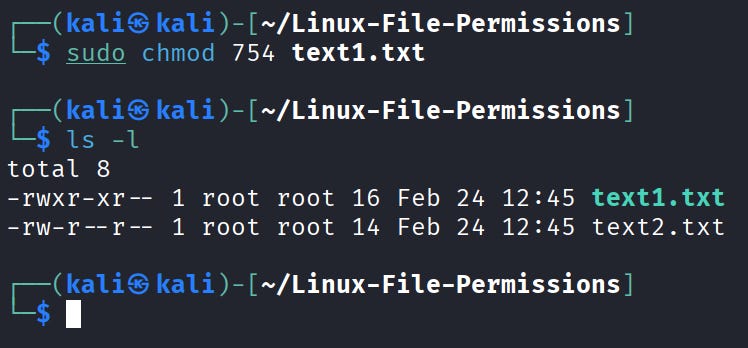
Explanation:
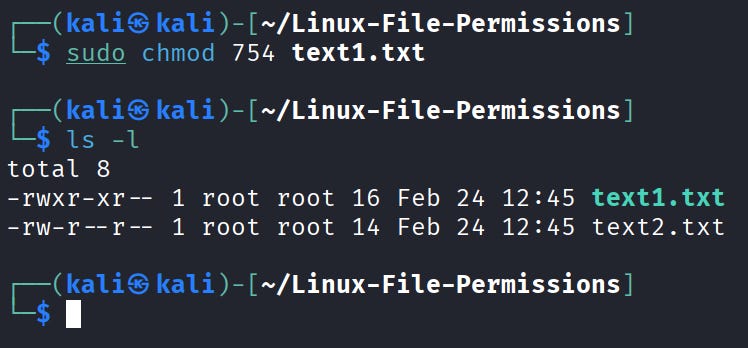
7→ owner (read+write+execute = 4+2+1)5→ group (read+execute = 4+1)4→ others (read only)
3. Changing File Owner or Group with chown
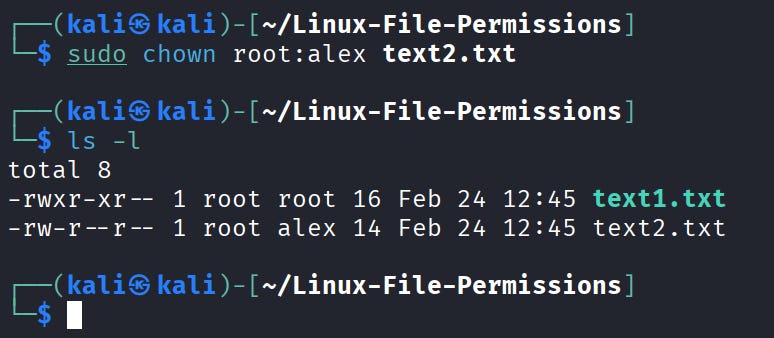
Command: sudo chown root:alex text2.txt
4. Exploring Advanced Permissions with ACLs
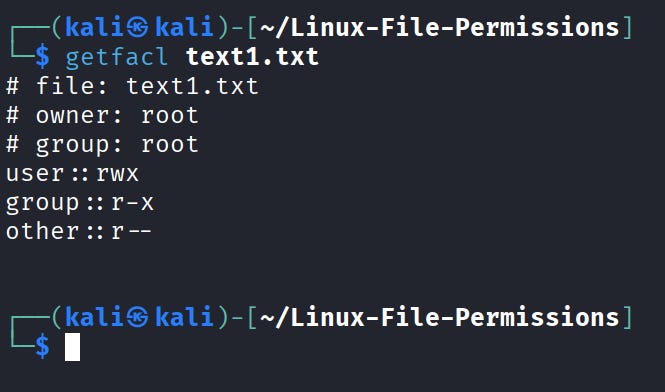
Command: getfacl text1.txt
Conclusion
In this way, we can easily understand and manage Linux file permissions to control who can read, write, or execute our files.
By practising these commands: ls, chmod, chown, umask, and getfacl
We can secure our files, organise access efficiently, and avoid accidental data loss.